> For the complete documentation index, see [llms.txt](https://wiki.mksdtech.com/llms.txt). Markdown versions of documentation pages are available by appending `.md` to page URLs; this page is available as [Markdown](https://wiki.mksdtech.com/beam/beam-for-revit/ray/batch-export.md).
# Batch Export
Export many Autodesk® Revit™ models to Rhino® in one go
**Batch Export** converts several Revit files into Rhino `.3dm` files, one per model. It opens each file, exports the chosen categories and closes it again. You don't need to open the models yourself.
## Start a batch
Use either way:
* Click **RAY** with no document open.
* Click **RAY** in any project and choose **Batch Export**.
Pick the `.rvt` files in the file dialog.
## Set up the batch
| Setting | What it does |
| ------------------------------------------ | ------------------------------------------------------------------------------------------------------------------------------------------------------ |
| **Destination Folder** | Where the `.3dm` files are saved. It starts at the current [.beam directory](/beam/beam-for-rhinoceros/beam-directory.md). Click **...** to change it. |
| **Files to Export** | The Revit files. Click **+** to add more, or the delete icon to remove one. |
| **Categories** | The model categories to export. All are ticked by default. |
| **Include Design Options as Rhino Layers** | Also export elements in primary design options, on their own layers. See [Layer Mapping](/beam/beam-for-revit/ray/layer-mapping.md#special-cases). |
| **Export Rooms** | Also export rooms, on a `Rooms` layer. |
| **Location** | **Internal Origin**, **Project Base Point** or **Shared Coordinates**. With shared coordinates, each model uses its active location. |
Click **BEAM** to start.
## Progress
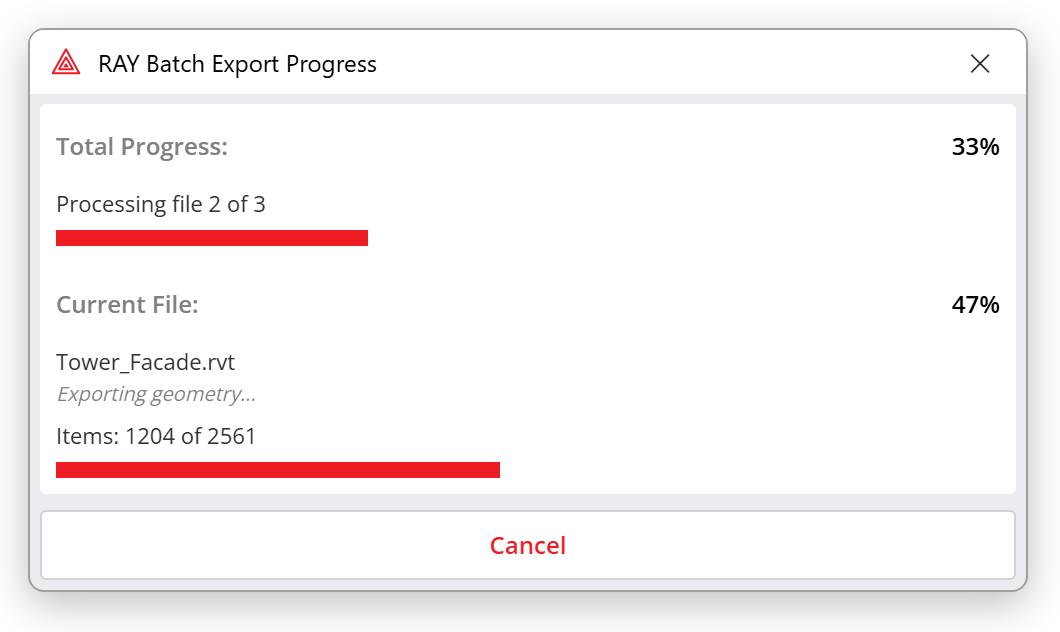
A progress window shows the file being exported and the overall progress. Click **Cancel** to stop after the current step.
Each output file is named after its Revit file, for example `Tower_A.3dm`.
## Results
When the batch ends, **RAY - Batch Export Results** lists every file with its status, output path, number of exported and failed elements, time and any error.
Click **Open Folder** to see the files. Open them in Rhino, or import them with [RAY for Rhino](/beam/beam-for-rhinoceros/ray.md).
{% hint style="warning" %}
Models are opened detached, with all worksets closed. In a workshared model, elements on closed worksets are not exported.
{% endhint %}